
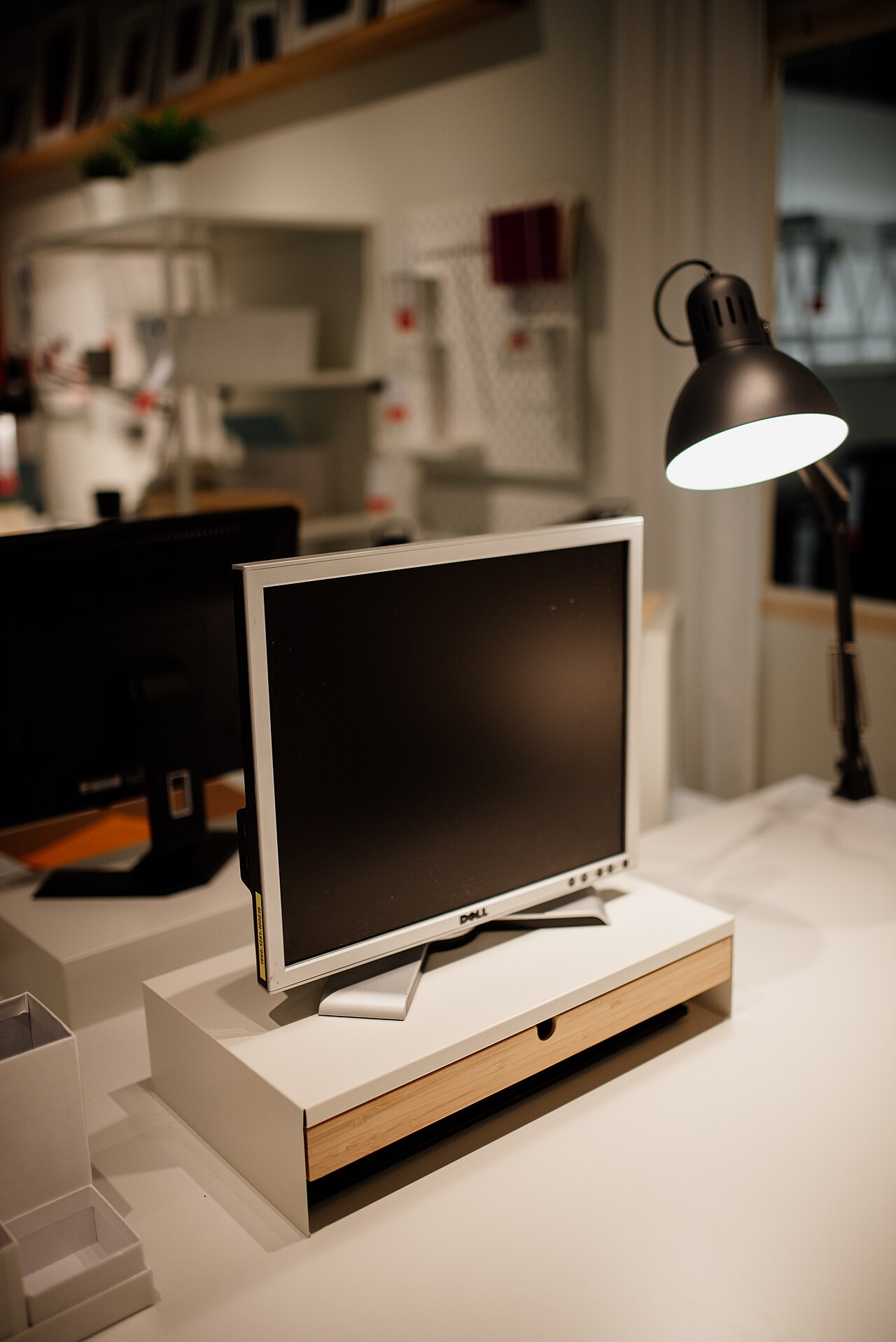
This is part of our tech gadgets buying guide. A better monitor, or a second one, is one of the highest-impact, lowest-cost upgrades available for anyone working at a desk regularly, often a bigger real productivity improvement than upgrading the computer itself.
Dell UltraSharp: the productivity and color-accuracy standard
Dell’s UltraSharp line is widely regarded as a reliable, color-accurate standard for office and creative productivity work, with consistently good build quality and stand ergonomics (height, tilt, swivel adjustment) that cheaper monitors often skimp on.

LG UltraWide: one large screen instead of two
LG’s UltraWide monitors offer an alternative approach to multi-monitor productivity: one very wide screen with enough horizontal space to display several windows side by side, rather than two separate physical monitors with a visible bezel gap between them. This suits users who prefer a single continuous workspace over a hard seam between displays.
Samsung monitors: strong value across price points
Samsung’s monitor lineup spans from budget-friendly basic displays to high-end professional and curved options, generally offering strong value at each price tier, worth considering across the full range depending on your specific budget and needs.

Comparison
| Monitor type | Best for | Key strength |
|---|---|---|
| Dell UltraSharp | Color-accurate productivity work | Build quality, ergonomics |
| LG UltraWide | Single continuous workspace | No bezel gap between windows |
| Samsung (general range) | Value across budgets | Strong price-to-feature ratio |
Two monitors versus one ultrawide: the real tradeoff
Two separate monitors let you angle each independently and are generally cheaper for equivalent total screen space, but introduce a visible bezel gap that interrupts a window spanning both screens. A single ultrawide monitor avoids that gap and simplifies cabling to one display, at typically a higher price for equivalent width and less flexibility to angle portions of the screen independently. Neither is objectively better; it depends on whether you value the gapless single surface or the flexibility and typically lower cost of two separate displays.
Resolution and size: bigger isn’t automatically better
A larger monitor at the same resolution as a smaller one shows the same amount of content, just larger, more comfortable for some, but not literally more screen real estate. More screen real estate specifically requires higher resolution, not just a bigger panel. Match resolution to your actual eyesight and viewing distance preference, and separately consider size for how many windows you want visible simultaneously at a comfortable text size.
Refresh rate: matters more for some work than others
A higher refresh rate (measured in Hz) makes motion appear smoother, valuable for gaming and video editing, but largely unnoticeable for static productivity work like documents, spreadsheets, and web browsing. Don’t pay a premium for a high refresh rate gaming monitor if your actual use is general office productivity; that budget is better spent on resolution, size, or build quality for that specific use case.
Ergonomics: the feature most worth prioritizing
A monitor’s stand adjustability, height, tilt, and ideally swivel, has an outsized effect on comfort during long work sessions, more than most people budget for upfront. A cheaper monitor with a poor, fixed-height stand often ends up needing a separate monitor arm purchased afterward anyway; factoring stand quality into the initial decision, or budgeting for a separate monitor arm from the start, avoids that redundant later cost.
Common mistakes when buying a monitor
Prioritizing refresh rate or gaming-specific features for a purely productivity use case is a common, avoidable overspend on features that won’t be used. The opposite mistake, buying the cheapest available monitor with a poor stand and mediocre color accuracy for genuinely long daily use, tends to show up as eye strain and posture problems that cost more in comfort than the modest upfront savings were worth.
Related reading
Back to the full tech gadgets buying guide, our guide to best laptops for working from home to pair with a new monitor setup, and best portable chargers and power banks for the rest of your desk accessories.
Frequently asked questions
Do I need a graphics card upgrade to run two monitors?
Most modern laptops and desktops support at least two external displays through built-in graphics without a separate graphics card, though check your specific machine’s documented display output support before assuming, since this genuinely varies by model.
Is an ultrawide monitor a good replacement for two monitors?
For many users, yes, particularly if you dislike the visible bezel gap between two separate screens; it’s a matter of workflow preference rather than one being strictly superior, and window-snapping software on most operating systems makes splitting an ultrawide into virtual sections straightforward.
How often should I replace a monitor?
Monitors typically remain fully functional and relevant for many years, longer than most other gadgets on this list, since core display technology improvements have been more incremental than transformative recently. Replace when a specific limitation (resolution, size, a failing panel) genuinely affects your work, not on a fixed schedule.
Does monitor brightness matter for eye comfort?
Yes, and it’s an underrated factor: a monitor too bright relative to ambient room lighting contributes to eye strain over long sessions. Most monitors support adjusting brightness and, on some models, a blue-light-reduction mode for evening use, worth actually using rather than leaving at factory defaults.



[…] Best Monitors for Productivity and Multitasking […]
[…] Best Monitors for Productivity and Multitasking […]