
This is part of our tech tips and troubleshooting hub. A home network’s security is easy to overlook entirely, most routers work fine straight out of the box on default settings, but a handful of specific changes meaningfully reduce real risk without requiring deep technical expertise.
Change the default admin password immediately
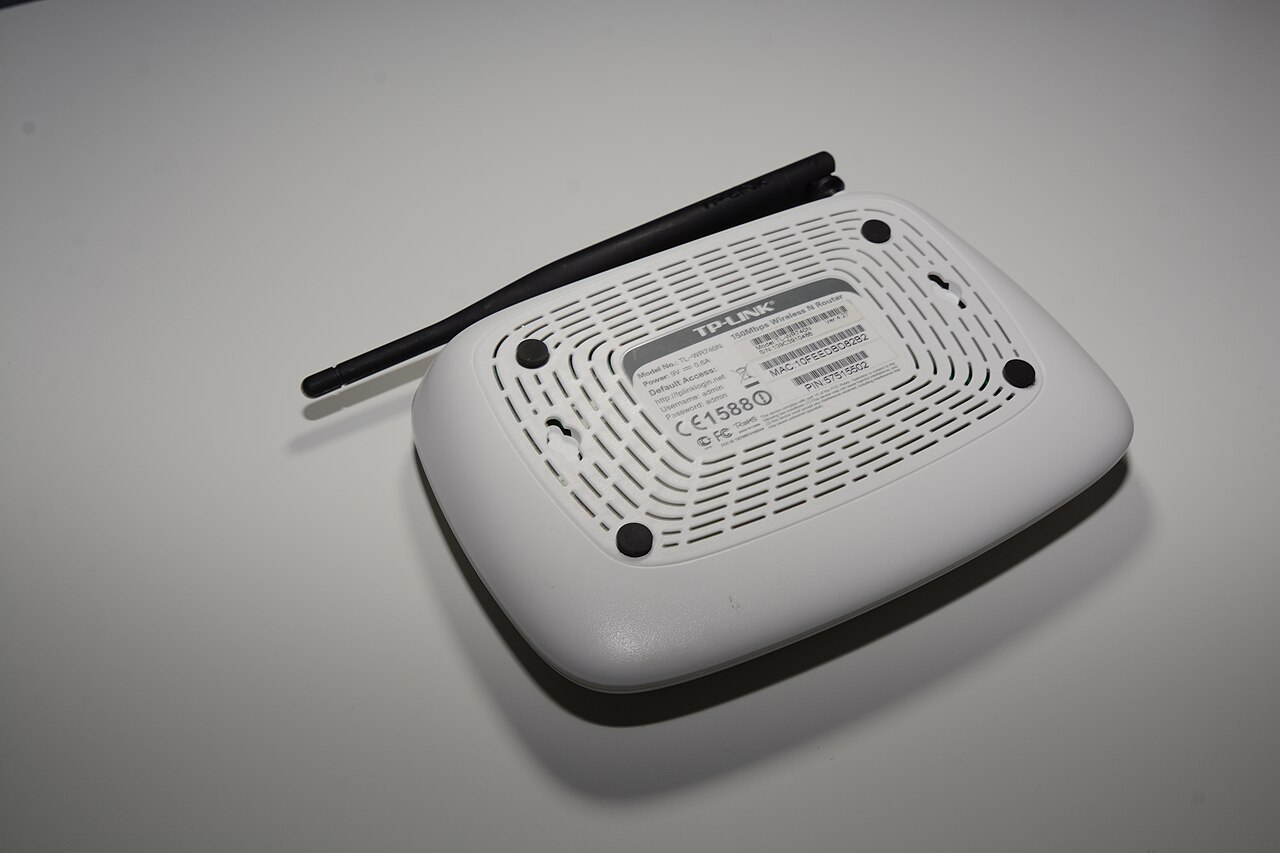
Every router ships with a default administrator password, often printed on the device itself or in its manual, and these defaults are widely known and published online, making an unchanged default a genuine, easily exploitable vulnerability. Changing this to a strong, unique password (ideally stored in a password manager, covered in our password managers guide) is the single highest-priority step covered here.

Use WPA3 encryption if your router supports it
Wi-Fi encryption standards have evolved over time, and WPA3, the current standard maintained by the Wi-Fi Alliance, offers meaningfully stronger protection than older WPA2 or especially the outdated WEP standard, which is genuinely insecure by modern standards. Check your router’s wireless security settings and select WPA3, or WPA2/WPA3 mixed mode if some older devices on your network don’t support WPA3 directly.
Set a strong, unique Wi-Fi network password
Separate from the router’s admin password, the Wi-Fi network password itself (what guests and devices use to actually join your network) should also be strong and unique, not a simple, guessable phrase. This is the password protecting who can access your network at all, worth taking as seriously as any other account password.
Set up a guest network for visitors and smart devices
Most modern routers support a separate guest network, isolated from your primary network where your computers and sensitive devices live. Using this for visitors and for lower-security smart home devices (covered in our smart home guide) limits the damage if a guest’s device or a less-secure smart gadget is ever compromised, since it can’t directly reach your primary network’s devices.

Keep router firmware updated
Like any other software, router firmware receives security updates addressing newly discovered vulnerabilities; many modern routers support automatic updates, worth enabling if available, and manual firmware checks are worth doing periodically for older routers that don’t update automatically. A router running years-old, unpatched firmware is a genuine, often overlooked security gap.
Disable remote management unless you specifically need it
Remote management lets you access your router’s settings from outside your home network, convenient in specific situations but also a real, unnecessary attack surface for most home users who never actually need this feature. Unless you have a specific, ongoing reason to manage your router remotely, disabling this feature (typically on by default on some routers) closes off a genuine, avoidable risk.
Common mistakes with home network security
Never changing default settings at all, admin password, network name, security type, is the most common gap, leaving a network at the exact vulnerability level it shipped with rather than the meaningfully improved state a few minutes of setup would achieve. The other common mistake is assuming a home network is too unimportant a target to bother securing; automated scanning tools target vulnerable home networks broadly and indiscriminately, not based on perceived importance.
Router placement and its overlooked security angle
Beyond pure signal strength, a router placed near an exterior wall or window can broadcast a usable signal well beyond your property line, giving a nearby stranger more opportunity to attempt access. Central placement within your home, primarily a performance consideration, also modestly reduces this exposure as a secondary benefit worth knowing about.
IoT and smart devices: a specific, growing risk category
Smart home devices (covered in our smart home guide) have historically had a mixed security track record, some manufacturers ship infrequent security updates or weak default configurations. Keeping these devices on a separate guest or IoT-specific network segment, changing their default credentials just as you would a router’s, and choosing established manufacturers with a track record of ongoing security support meaningfully reduces the risk this specific device category introduces to an otherwise well-secured network.
How often to revisit these settings
Beyond the initial setup, a periodic check, roughly annually or whenever you get a new router, confirming firmware is current and settings haven’t reverted to defaults after a factory reset or router replacement, keeps this from becoming a one-time task that quietly goes stale over years of otherwise not touching the router.
Related reading
Back to the full tech tips and troubleshooting hub, our guide to best VPN services for protecting traffic beyond your home network, and protecting yourself from phishing scams for another foundational everyday security habit.
Frequently asked questions
Is it safe to use my internet provider’s default router settings?
The default admin password and, on older equipment, the default security type are the specific things worth changing regardless of provider; everything else about a provider-supplied router is generally fine to leave as configured once those specific defaults are addressed.
How do I know if someone unauthorized is using my Wi-Fi?
Most router admin interfaces show a list of currently connected devices; reviewing this list periodically and recognizing whether every device is actually yours is a simple, direct way to check, worth doing if you notice unexplained slowdowns or unfamiliar device names.
Do I need a separate firewall device for home use?
No, virtually all consumer routers include a built-in firewall handling this function adequately for typical home use; a separate dedicated firewall device is generally unnecessary complexity for a residential network without specific advanced requirements.



[…] How to Set Up a Secure Home Wi-Fi Network […]
[…] How to Set Up a Secure Home Wi-Fi Network […]